Apr 28, 2012

Google Drive: Google Docs Meets Dropbox

Google Drive: Google Docs Meets Dropbox: Google Drive is finally here, but it's not a completely new service. It's not just a new name for Google Docs, it also brings a different vision: your files are always in sync. Google Drive offers 5 GB of free storage, up from 1 GB, and lets you download desktop and mobile apps that synchronize your files. For now, the apps are only available for Windows, Mac and Android, but Google will release an app for iPhone and iPad in the near future.


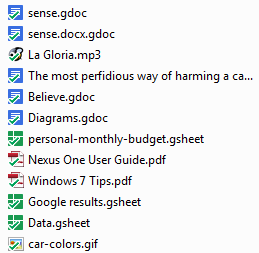
By default, the desktop app creates a new folder for Google Drive, downloads all the files uploaded to Google Docs and adds shortcuts for the files created using Google Docs apps. This way, the files download to your computer are available offline and can be opened using your favorite apps, while the files created using Google Docs can only open in a browser. If you use Chrome, you can also open some of the files offline. For some people, this will be confusing.

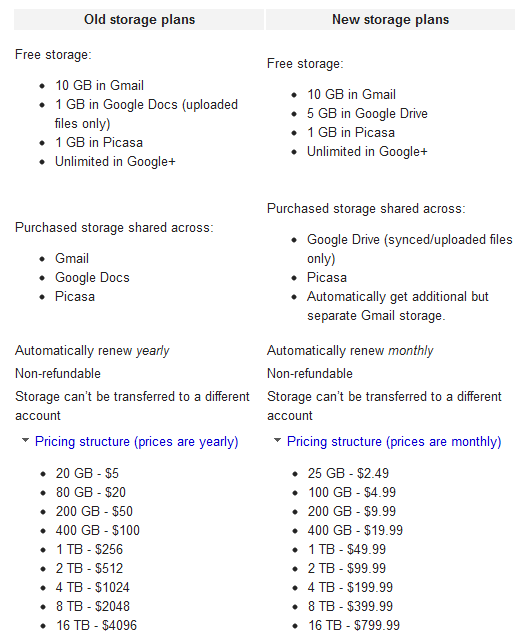
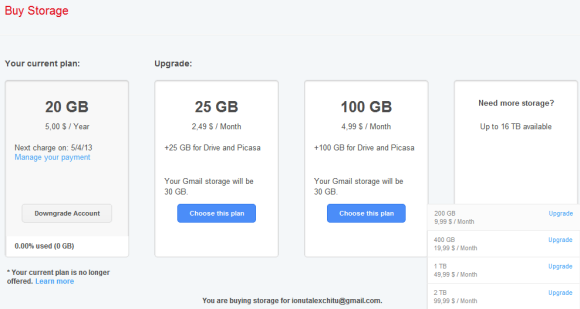
Another issue is that Google offers some new storage plans. The sad thing is that Google's new storage plans are a lot more expensive that the previous ones: now you need to pay $2.49/month (almost $30/year) for 25 GB, instead of $5/year for 20 GB. They're still cheaper than Dropbox's plans, but they're more expensive than Microsoft's plans. Microsoft downgraded the free quota from 25 GB to 7 GB, but existing users can still keep it.
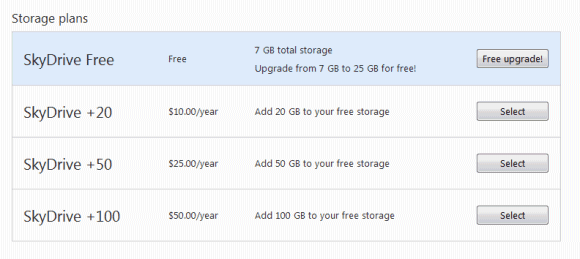


Google DriveDropboxSkyDrive
Free storage5 GB2 GB (up to 18 GB)7 GB (existing users: 25 GB)
+20 GB$10
+25 GB$29.88
+50 GB$99$25
+100 GB$59.88$199$50


If you upgrade to one of the new plans, Google offers 30 GB of additional Gmail storage. For some reason, the shared storage is no longer available for Gmail and it's now limited to Google Drive and Picasa Web Albums.

Here are the old Google plans (if you already use one of them, you can keep it and you won't be upgraded to the new plans automatically):
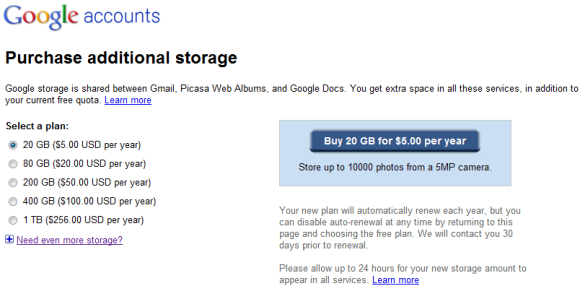

and the new plans:


Gmail now offers 10 GB of free storage, while Google Drive only offers 5 GB. Instead of encouraging users to send attachments, the files could be stored in Google Drive.

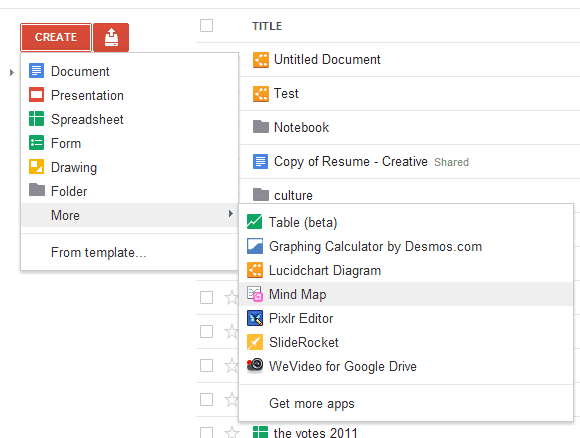
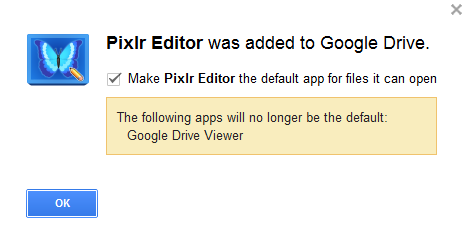
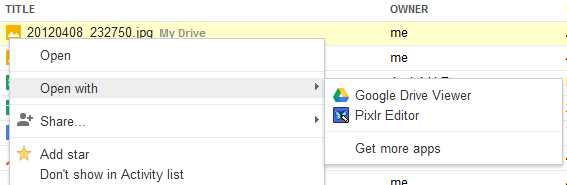
Google Drive integrates with third-party apps and one of them is already enabled by default: Pixlr, a photo editor. You can also install some Chrome apps that integrate with Google Drive. There's a new "open with" item that lets you pick one of the apps from the contextual menu.

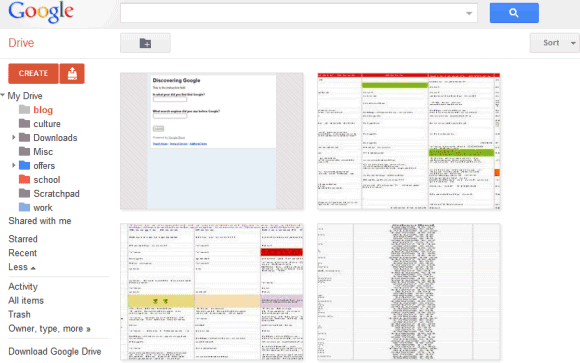
There are many other changes: a grid view, collections are now called folders, an activity view that shows "live updates of everything you and others have modified" and Google Apps support.

"Drive is built to work seamlessly with your overall Google experience. You can attach photos from Drive to posts in Google+, and soon you'll be able to attach stuff from Drive directly to emails in Gmail. Drive is also an open platform, so we're working with many third-party developers so you can do things like send faxes, edit videos and create website mockups directly from Drive," explains Google. Ironically, the Google blog post is written by Sundar Pichai, who killed the Google Docs project back in 2008. "I don't think we need GDrive anymore. Files are so 1990," he said at that time.


{ Thanks, Joel and Yavuz. }

Google Drive's Folder View

Google Drive's Folder View: Google Drive added a new way to view the files from a folder. Just right-click the folder, select "open folder" and you'll be able to preview and edit files, while still seeing the list of files. The nice thing is that the files are cached and you can quickly switch between them without reloading the files.


You can use this feature to compare documents, edit two documents simultaneously or preview the files from a folder shared with you. The sidebar can be minimized by clicking the small arrow icon and you'll still be able to click file icons.


{ Thanks, Jérôme. }


Google Docs Experiments With a Font Manager

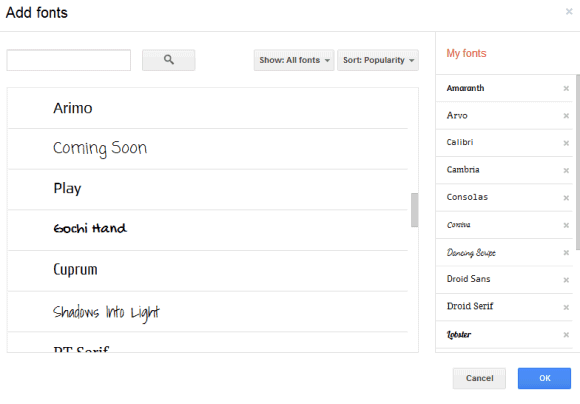
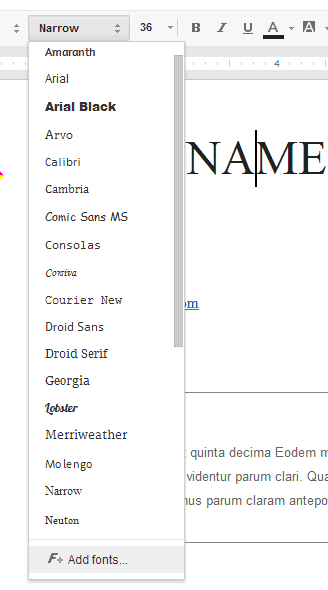
Google Docs Experiments With a Font Manager: Google Docs tests another great feature: a font manager that will help you customize the list of fonts and add new fonts from the Google Web Fonts project. You can sort the fonts by popularity, by name or the date added and restrict the fonts to serif, sans serif, display and handwriting.

There's also a search box that lets you find a font. For example, you can use the advanced search tool from the Web Fonts project, find your favorite font, then quickly add it to the Google Docs font list.


You can try the new feature
using this template
(update: the document has been removed). Just click "use this template" and you'll create a new document that opens in an updated version of the Google Docs editor. To access the font manager, click the font dropdown from the toolbar and select "add fonts" at the bottom of the list.


{ Thanks, abarjames1. }

Chrome and Google Drive's Third-Party Apps

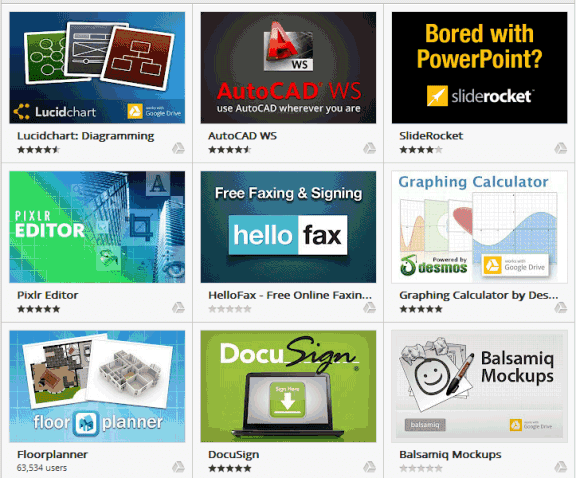
Chrome and Google Drive's Third-Party Apps: One of the most important Google Drive features is the support for third-party apps. Now you're no longer limited to Google's word processor, spreadsheet editor, presentation app and you can use web apps developed by other companies.

Google released a SDK for Google Drive apps and there are already 18 apps that use it. Users are required to install a Chrome app from the Chrome Web Store for each Google Drive app, but they don't have to use Chrome. Google's dev blog informs that "Drive apps are distributed from the Chrome Web Store and can be used with any modern browser." I've managed to install apps in Firefox and Opera, but not in IE9.


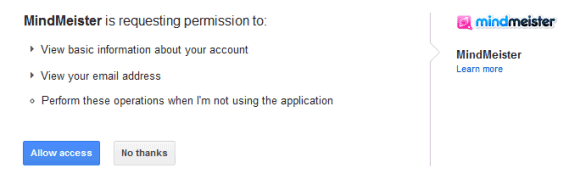
To integrate a third-party app with Google Drive, the app sends you to a page that asks for your permission. The authorization process fails if you load the page without installing the Chrome Web Store app. As Google says, "apps will not have any API access to files unless the app has been installed in Chrome Web Store." Chrome apps are only used to allow the third-party apps to use the Drive API, but they can be uninstalled immediately after they're installed and all the features will work in Chrome and any other browser.


At the moment, Drive apps don't integrate with Chrome, but that's likely to happen in the future. Chromebooks would be a lot more useful if you could sync files with Google Drive and open them using web apps.

Google Drive Goggles

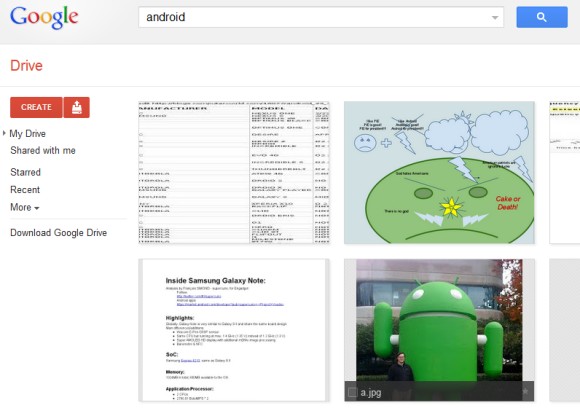
Google Drive Goggles: Google Drive has the most powerful image search technology you can find in an online storage service. It uses Google Goggles technology to recognize objects, logos, landmarks, text and much more, so you can find an image even if the filename is a.jpg. The most impressive thing is that the processing happens as soon as you upload the images and there's no setting to enable.

For example, Google Drive found an image of the Android statue from the Googleplex when searching for [Android].


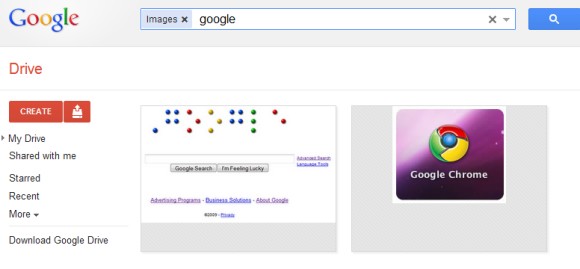
It also found a screenshot of Google's homepage and a Chrome logo when searching for [Google], this time using OCR technology.


"Let's say you upload a scanned image of an old newspaper clipping. You can search for a word from the text of the actual article. We also use image recognition so that if you drag and drop photos from your Grand Canyon trip into Drive, you can later search for [grand canyon] and photos of its gorges should pop up. This technology is still in its early stages, and we expect it to get better over time," explains Google.